





Google Maps has changed the way we find our way around, whether you’re heading to a friend’s house or planning a long road trip. If you’ve ever felt lost trying to figure out the best route, you’re not alone. This guide will help you master google maps directions between two points, making your navigation experience smoother and more efficient. You’ll learn how to choose the right transportation mode, add multiple stops, and optimize your route for the best travel experience.
Key Takeaways
- Understand the key features of Google Maps for better navigation.
- Choose the right transportation mode based on your needs.
- Learn how to add and edit multiple stops in your route.
- Optimize your route using traffic data and customization options.
- Be aware of common challenges and how to maximize your Google Maps experience.
Understanding Google Maps Directions Between Two Points
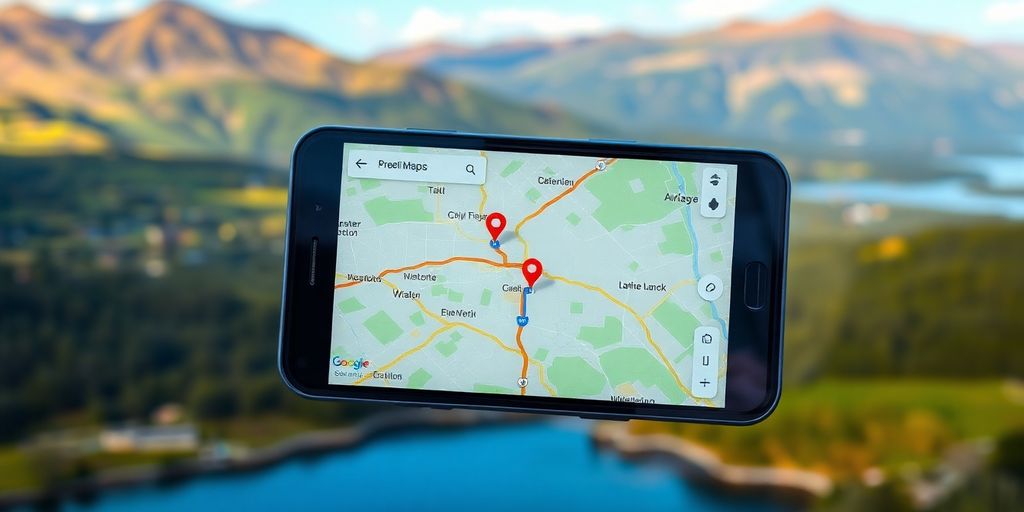
Key Features of Google Maps
Google Maps offers plenty of tools to help you move from point A to point B. Here are some features that many users appreciate:
- Step-by-step guidance during the trip
- Live updates with real-time traffic conditions
- Options to change your route or add stops easily
Below is a simple table summarizing a few of the tools available:
| Feature | Description |
|---|---|
| Voice Navigation | Provides clear, spoken directions |
| Live Traffic | Shows current road conditions and congestion |
| Route Editing | Lets you adjust stops on the fly, like multi-stop planning |
Google Maps puts many useful tools right at your fingertips.
Types of Directions Available
There are several ways Google Maps can help you find your way:
- Driving routes that consider highways, main roads, and alternate paths.
- Walking directions which create paths through walkable areas.
- Public transit guidance that mixes buses, trains, and other local options.
These options are set up so you can easily choose how you want to travel based on your needs and current mode of transport. Sometimes, a faster route for a car might not be available on foot, and vice versa.
Benefits of Using Google Maps
People often choose Google Maps because it makes traveling less stressful. Some of the advantages include:
- Quick and clear directions without a lot of extra steps
- Up-to-date data about road delays or transit schedules
- Flexible routing that can include stops when necessary
When planning your journey, remember that the right route can save time and reduce hassle. Taking a moment to check the details on Google Maps, including changing the number of stops when needed, might just make your trip a lot smoother.
Using Google Maps in these ways can offer an effective and simple way to reach your destination, regardless of whether you’re driving, walking, or taking public transport.
Choosing the Right Transportation Mode
Driving Directions
When you choose to drive, you get step-by-step guidance that adjusts to current road conditions. In many cases, the instructions are highly detailed, showing lane changes and exits. Check out transport choices for quick ideas on these options. Driving directions give you immediate feedback on road situations.
Some advantages of driving directions include:
- Real-time updates that adjust to delays
- Detailed maneuvers for complex roads
- Flexibility to reroute when needed
Walking Directions
Walking isn’t just about getting from point A to B—it offers a chance to explore and enjoy your surroundings. With walking directions, the route is often more straightforward. It also accounts for pedestrian-friendly streets and safe crossings.
Here are some steps to keep in mind if you’re on foot:
- Check weather conditions before you leave.
- Look for routes with plenty of crosswalks and sidewalks.
- Enjoy the pace and explore your neighborhood.
Walking routes can provide a relaxed travel experience, giving you time to observe your surroundings and take in the local vibe.
Public Transit Options
Public transit is a good choice if you want to avoid traffic and the hassles of parking. Directions for transit usually balance route options and timing. You might see schedules and updates that help you plan your trip effectively.
A quick look at some transit options can be helpful:
| Option | Frequency (minutes) | Cost (average) |
|---|---|---|
| Bus | 10-15 | $1.50 |
| Train | 15-20 | $2.00 |
| Light Rail | 12-18 | $2.50 |
When riding public transit, consider these points:
- Check the schedule ahead of time.
- Purchase tickets or passes in advance if possible.
- Keep an eye on any service updates that might cause delays.
Adding Multiple Stops to Your Route
When planning a trip, sometimes you need to make a few stops along the way. The feature in Google Maps lets you add several destinations, so you don’t have to plan different trips for each stop. This can make your trip smoother and more organized. Also, it gives you a chance to plan breaks, errands, or even a quick look around new places. For anyone looking for more info, check out startup growth tips that might be useful in planning efficient schedules.
How to Add Stops
Start by opening Google Maps and entering your original destination. Then, tap the add stop option. Here are some simple steps:
- Enter your starting point and final destination.
- Use the add stop tool to type in your first pause spot.
- Repeat the process for each extra stop you want to make.
The process of adding stops is simple and can really save you time on your journey.
Editing Your Route
Once you’ve added all your stops, you might want to change their order. This is where things can get a bit hands-on. You can click on any stop and drag it to a new position. Here are some ideas to keep in mind:
- Check the sequence to make sure it makes sense geographically.
- Use the optimization tool in Google Maps for the best order.
- Adjust stops if you notice any detours or extra mileage.
Sometimes a little rearrangement can make your journey much more efficient.
Reviewing Your Stops
After setting up the route, it’s smart to review every stop before you head out. Look over the list again to catch any mistakes or missing destinations. A short review can help avoid unnecessary backtracking. Consider this table as a simple way to keep track:
| Stop Number | Location | Notes |
|---|---|---|
| 1 | First Address | Quick coffee break |
| 2 | Second Address | Pick up a document |
| 3 | Third Address | Lunch with a friend |
Remember to double-check each stop before finalizing your route. This step can help prevent last-minute changes or confusion.
Reviewing your stops ensures that every part of your journey is clear before you start driving or walking. Alternating a few rearrangements as suggested can lead to a better overall trip. Enjoy your journey and safe travels!
Optimizing Your Route for Efficiency
When planning routes with Google Maps, a little extra thought goes a long way. It’s about weighing the choices and making practical tweaks to save time.
Factors to Consider
Think about what really matters when you’re setting out. Here are some points to weigh:
- Distance vs. Time: Sometimes a shortcut might add more time because of extra stops.
- Road conditions: Whether it’s under construction or slick from rain, these change how you plan.
- Scheduling: Adjust plans based on the time of day and potential delays.
By carefully evaluating these elements, you can craft a plan that reduces unexpected hold-ups on the road.
Using Traffic Data
Traffic data is one of your best friends. Google Maps offers live updates to help dodge intense jams and surprise delays. Here’s how to make the most of it:
- Check real-time updates before and during your trip.
- Keep an eye on roadwork or accidents reported along your path.
- Adapt your journey when new data comes in, like adjusting meetings or delivery windows.
Using data wisely can cut down on wasted hours. A quick check might save you a long wait.
Customizing Your Route
Customize your trip to match your needs, whether you want scenic drives or a brisk shortcut. Consider these tips:
- Choose preferred roads or avoid tolls if necessary.
- Rearrange stops by dragging them to optimize the route order.
- Integration of tools like latest Chrome may enhance performance if your browser is up to date.
Below is a simple table showing potential improvements with route tweaks:
| Option | Typical Savings |
|---|---|
| Avoiding toll roads | 5-10% faster |
| Off-peak scheduling | 10-15% quicker |
| Direct routing | 20% reduced time |
By adjusting settings to suit your traveling style, you can cut down on both stress and idle time.
Planning for Real-Time Navigation
Real-time navigation means keeping your travel plans flexible while in transit. Let’s look at three ways to do this with Google Maps.
Using Voice Commands
Voice commands let you control your route hands-free. You simply say your destination, and the app handles the rest. No need to fiddle with your phone while driving. This method helps you stay focused on the road. Here’s how to get started:
- Turn on voice command mode in the app settings.
- Clearly speak your destination or route commands.
- Listen for confirmations and adjustments from the app.
If you want to explore a more immersive experience, consider checking out AR Navigation for added insights on voice control integrated with augmented reality.
Offline Maps
Sometimes, your internet might drop when you need it most. Offline maps let you keep navigating even when the connection is gone. Download the areas you need before you start your journey. Here are a few benefits of using offline maps:
- They provide essential route data during network outages.
- They help reduce data usage while on the move.
- They allow you to plan detours easily without live updates.
Using offline maps is a reliable backup plan, making your travel less stressful when you’re off the grid.
Adjusting to Traffic Conditions
Traffic can change your plans in an instant. Google Maps can update you on conditions and help you reroute as needed. When assessing traffic, keep these points in mind:
- Monitor real-time alerts for sudden changes.
- Let the app suggest alternative paths if a jam appears.
- Stay patient; sometimes a small detour saves more time.
Below is a quick table to understand the impact of different traffic conditions:
| Condition | Effect on Route | Tip |
|---|---|---|
| Heavy Traffic | Slower travel time | Look for side streets to bypass crowds |
| Moderate | Slight delay | Keep an eye on upcoming intersections |
| Light | Smooth sailing | Enjoy a relaxed drive with few changes |
- Always check traffic updates before starting your journey.
- Keep your route flexible to adapt to changes.
- Use the app’s suggestions to make intelligent detours.
Staying updated on traffic conditions is key for smooth navigation. Even small pauses in heavy traffic can be managed with quick adjustments. A little flexibility can make your journey significantly easier.
Common Challenges with Google Maps Directions
Connectivity Issues
Sometimes, your navigation gets thrown off by a spotty internet connection. When your device struggles to update in real time, it can mix up your route or leave you waiting for a refresh. Here’s a quick look at some common connectivity hiccups:
| Issue | Description |
|---|---|
| Weak Signal | Routes load slowly in low-coverage zones |
| Intermittent Network | Abrupt stops in updating navigation data |
| Data Delays | Sluggish recalculations during heavy usage |
- Poor signals often lead to confusing route updates.
- Brief outages can result in delayed or incorrect directions.
- Heavy network load makes real-time corrections harder.
Connectivity issues can derail a perfect navigation plan. navigation issues
Limited Customization Options
Many users find the customization settings in Google Maps a bit too basic. If you want a highly tailored route, you might struggle to get the adjustments you need. The built-in tweaks don’t always cover all the unique factors every traveler might face:
- The app offers only limited choices for route alterations.
- Fine-tuning your journey often feels like working with restrictions.
- You may have to resort to manual workarounds when the auto-suggestions fail.
Subscription Costs
While the free features cover basics, adding extra capabilities can come at a price. For those needing detailed customization or business-oriented features, subscription fees might get in the way of smooth and affordable navigation:
- Advanced options can require paid subscriptions.
- Frequent feature updates might push you into a premium plan.
- Cost can be a significant factor for budget-minded users.
Each of these challenges highlights areas where Google Maps might not meet every user’s expectations, especially when precision and customization are key. Enjoy your journey, but be ready for a few bumps along the way.
Maximizing Your Google Maps Experience
Staying on top of your Google Maps can make your travel routines a lot smoother. This section gives a look at simple steps you can take to get the most out of the app.
Keeping Your App Updated
Keeping your Google Maps up-to-date is more than just a routine check; it helps with safety and usability. Regular updates make sure you have the newest features and fixes.
Some simple actions include:
- Checking for app updates in your device store once a week
- Restarting the app to load the fresh version
- Clearing cache if the app seems slow
It’s worth taking a few minutes to check your update settings, as even small changes can improve your daily navigation experience.
Utilizing New Features
Google Maps rolls out new features now and then that can simplify your trips. Recent updates may include things like new app views or easier ways to plan stops. Try exploring settings to see what’s new. Also, consider using satellite view tips to get a different look at the area around your route.
Some practical steps:
- Open the settings menu in the app
- Look through the new feature introductions
- Test them on a familiar route before a long drive
Exploring Alternative Routes
Sometimes the fastest route isn’t the best. Look at different options that might help you avoid heavy traffic or boring stops. Testing various paths can reveal routes that suit your style better.
For a quick look at what other routes offer, see the table below:
| Route Option | Time (min) | Distance (miles) |
|---|---|---|
| Main Highway | 25 | 15 |
| Scenic Backroad | 30 | 18 |
| Mixed Urban Routes | 28 | 16 |
This table can serve as a starting point, but make sure to analyze based on real-time traffic updates and your own travel needs.
Wrapping It Up
In conclusion, mastering Google Maps for directions can really change how you travel. It’s all about knowing how to use the app to your advantage. From picking the right route based on your transport method to adding stops along the way, there’s a lot you can do to make your journey smoother. Remember to check traffic updates and consider the time of day when you’re planning your trips. With a little practice, you’ll be navigating like a pro in no time. So, whether you’re heading to a new spot in town or planning a long road trip, Google Maps has got your back.
Frequently Asked Questions
How can I make a custom route in Google Maps?
Making a custom route is easy! Just click and drag the route line to where you want it to go. Google Maps will change the route based on your new path.
What types of directions can I get with Google Maps?
Google Maps offers different types of directions like driving, walking, biking, and public transport. You can choose the one that fits your needs best.
Can I add multiple stops to my route?
Yes, you can add multiple stops! Just enter your starting point and destination, then click on the three dots and select ‘Add Stop’ for each place you want to visit.
How does Google Maps help with traffic?
Google Maps shows real-time traffic updates, helping you avoid traffic jams and find the quickest route.
What should I do if I have no internet connection?
If you lose internet, you can download maps for offline use before your trip. This way, you can still navigate without a connection.
How can I keep my Google Maps app updated?
To keep your app updated, go to your device’s app store and check for updates regularly. This ensures you have the latest features and fixes.
